
Connection Guide
Igloohome x Noé — Smart locks & guest access codes

This guide walks you through connecting your igloohome smart locks to Noé, so a temporary access code is generated automatically for each booking and shared with your guests.
 Connecting igloohome (iglooconnect)

Pair your devices in the igloohome app
If you haven't already, add and pair your locks from the igloohome mobile app.
 Sign in to iglooconnect
Go to connect.igloocompany.co/login and sign in with your igloohome credentials.
 Set up Stripe billing (API subscription)
Go to Settings > Post Paid, then click “Configure Stripe payment” and follow the steps to complete your payment setup.
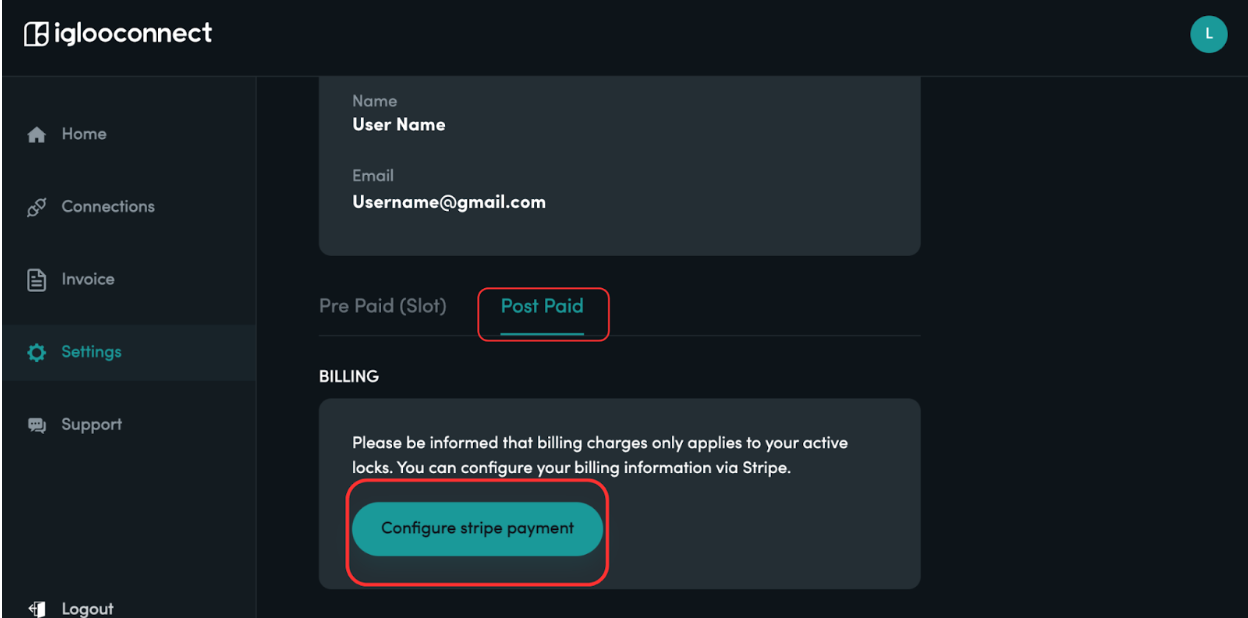
iglooconnect — Settings > Post Paid > Configure Stripe payment
Note: An API subscription fee of $2 per active device per month applies, billed directly by igloohome via Stripe.

Search for Noé from the home screen
From the iglooconnect home screen, search for and select Noé to start the connection.
 Connecting on the Noé side
 Open the Marketplace
Sign in to your Noé account, click your profile icon in the top right, then select Marketplace from the menu.
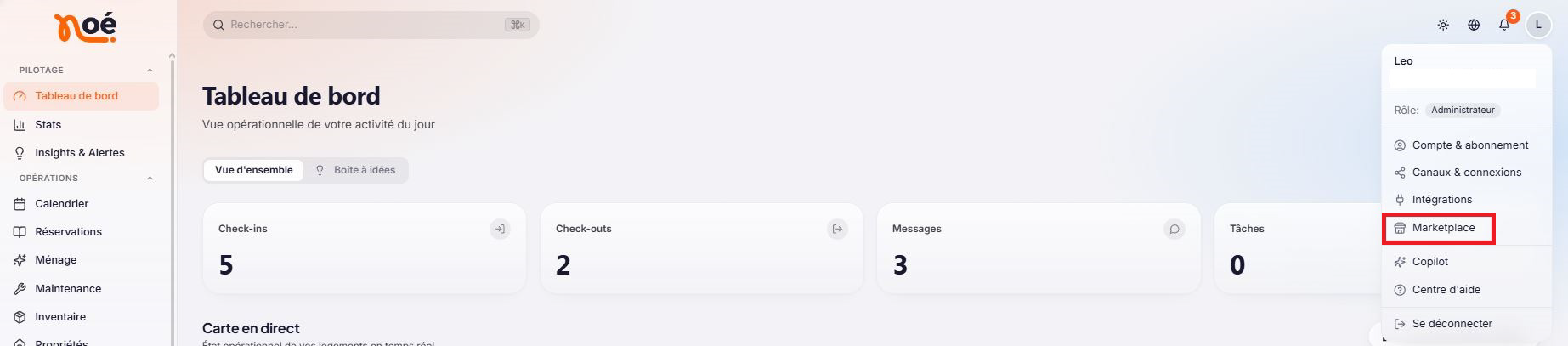
Noé profile menu — accessing the Marketplace
 Select igloohome
In the Marketplace, find the igloohome card and click “Manage”.
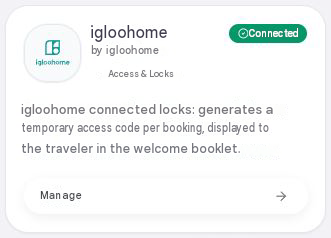 igloohome integration card in the Noé Marketplace
 Connect your igloohome account
Click “Connect igloohome”. An igloohome sign-in window will open: enter your igloohome
username and password, then confirm.
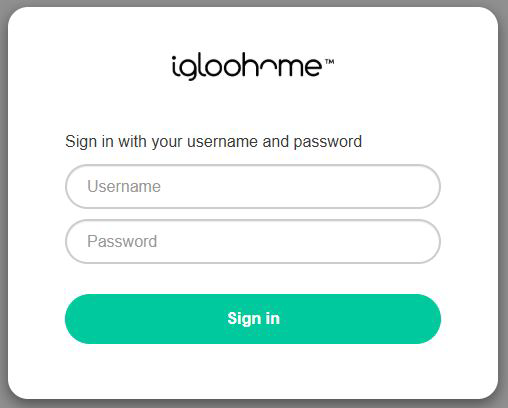 igloohome sign-in window from within Noé
 Link each lock to its property
Once connected, the page shows the connection status, the list of locks synced from
igloohome, the generated access codes and the activity log. Link each detected lock
to the correct property to enable guest code generation.
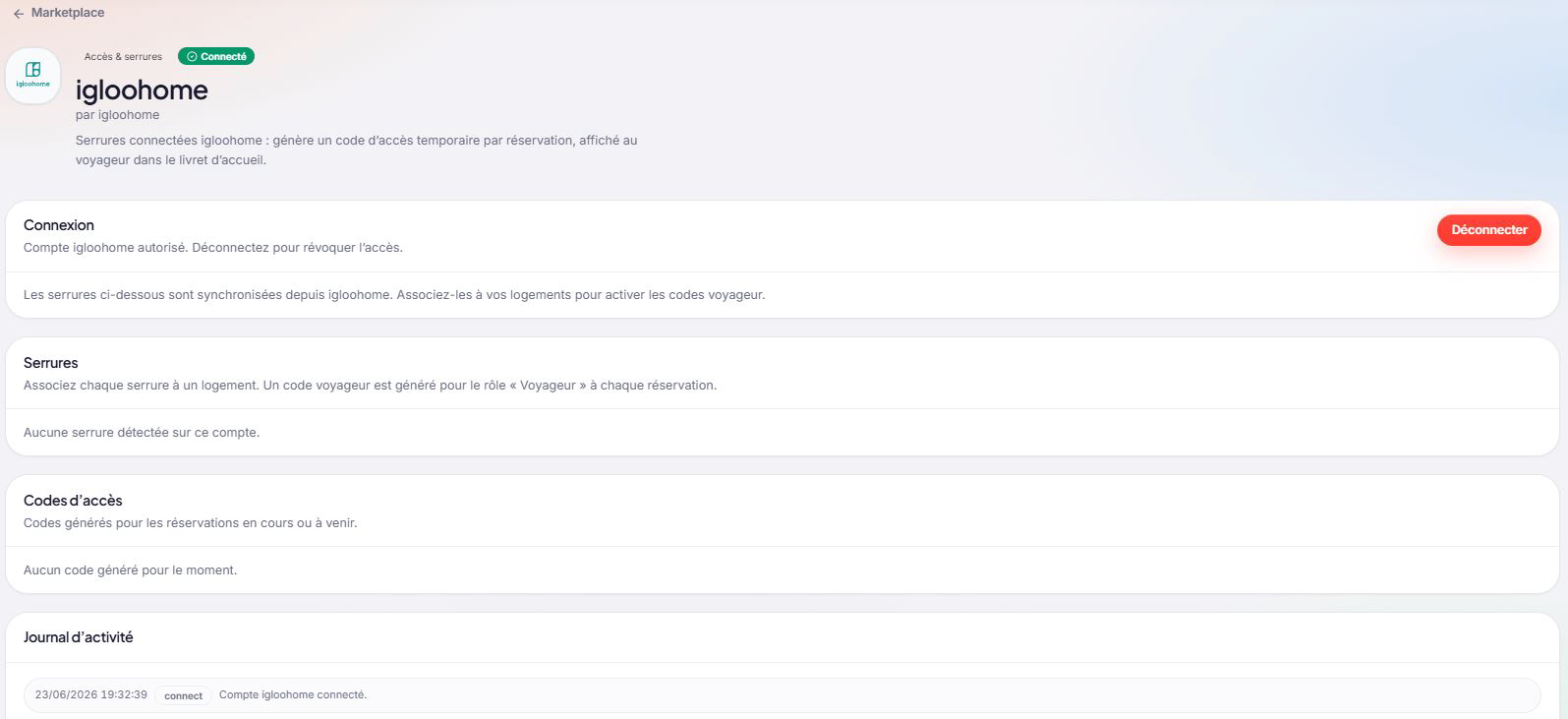
Connected igloohome management page — Connection, Locks, Access codes, Activity log
Note: A unique guest access code is automatically generated for each booking, for the “Guest” role linked to the connected property.
 Using the access code in your messages
Once a lock is linked to a property, the code generated for each booking can be inserted automatically into your guest messages via Automations.
 Create or edit an automation
Go to the Guests tab > Automations, then create a new rule (or open an existing one). At
step 4-Actions, set up the “Send a message to the guest” action.
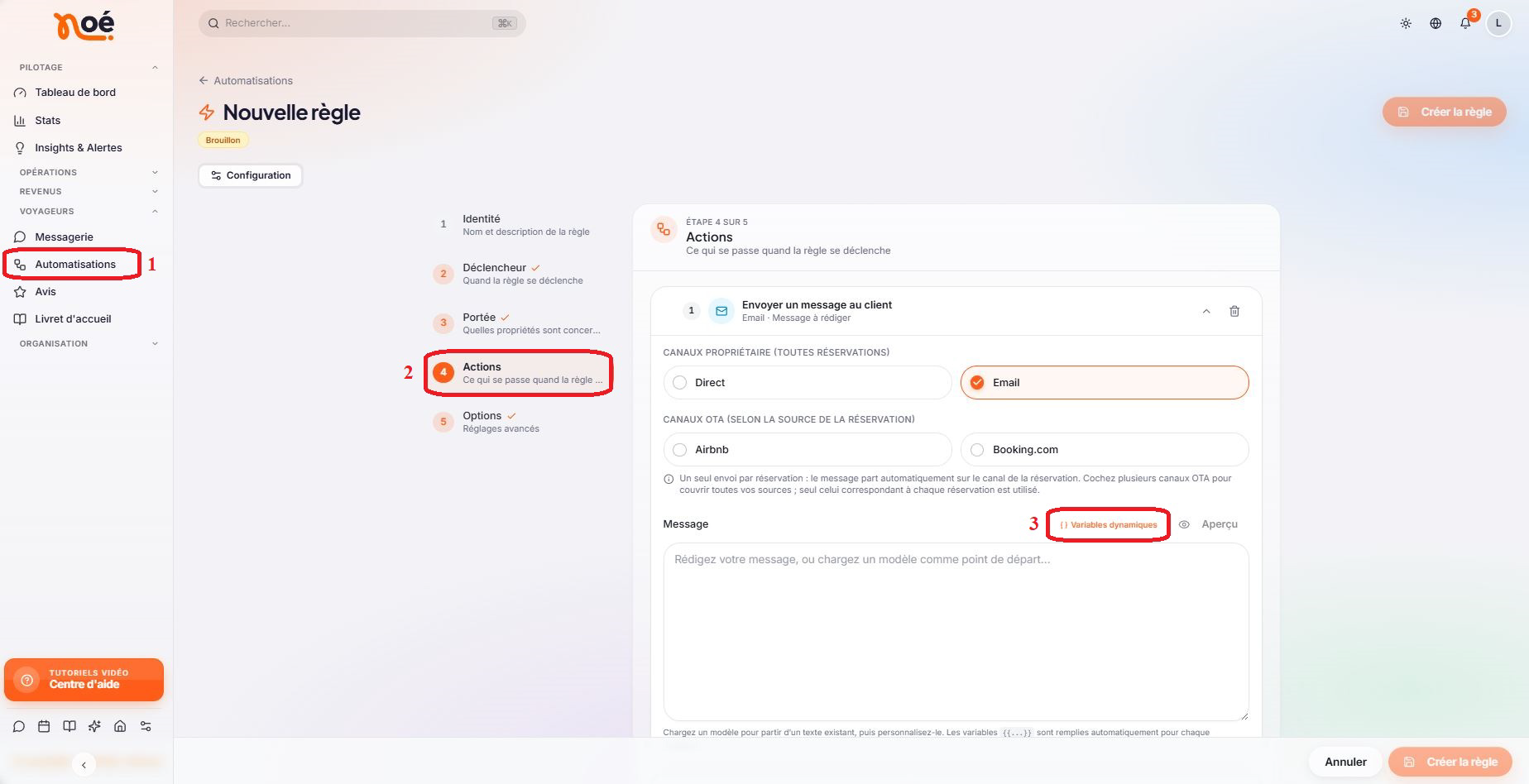
Noé Automations — step 4 “Actions”, “Dynamic variables” button
 Insert the connected lock code variable
Click “Dynamic variables”, then in the “Connected locks” section, select the “Connected lock
code” variable to add it to your message. It will fill in automatically with the code generated
for each booking.
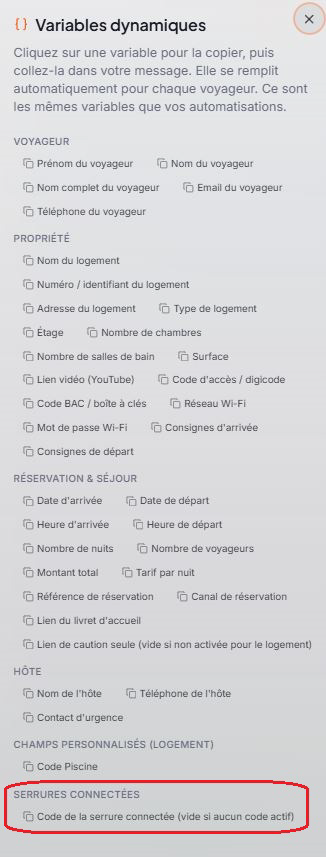
Dynamic variables panel — “Connected locks” section
Note: If no active lock is linked to the property, the variable stays empty in the message sent to the guest: make sure to check the property/lock link from step 2.4.